
BoothMaven HubSpot Integration Guide
Getting Started
BoothMaven offers a native, out-of-the-box integration with HubSpot that can be configured in approximately two minutes. The setup process is straightforward and requires no technical expertise.
Before proceeding, ensure the BoothMaven user performing the integration has administrator privileges in both BoothMaven and HubSpot, including permission to:
- Read and write leads and contacts
- Assign contacts to campaigns
- Write activities to the contact timeline
Step 1 — Navigate to HubSpot & Salesforce Settings
In the BoothMaven dashboard, navigate to:
Settings → HubSpot & Salesforce
Select the HubSpot tab. Under HubSpot CRM, click the
Connect HubSpot button to begin the OAuth connection process.
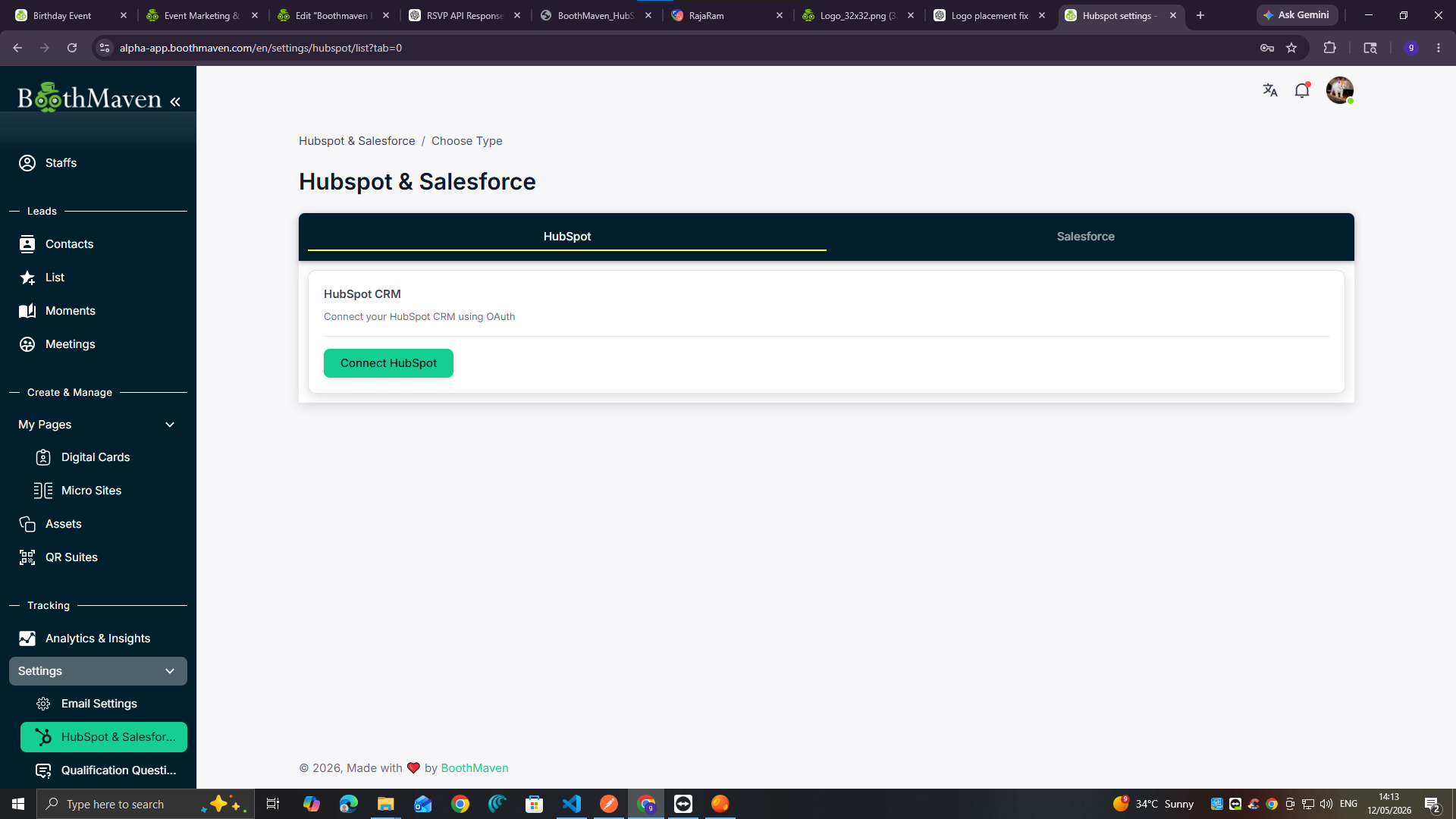
BoothMaven Settings → HubSpot & Salesforce → Click “Connect HubSpot”
Step 2 — Choose Your HubSpot Account
Your browser will redirect to HubSpot’s OAuth authorization page displaying:
“Connecting boothmaven-App to HubSpot”
Select the appropriate HubSpot account from the list and click
Choose Account.
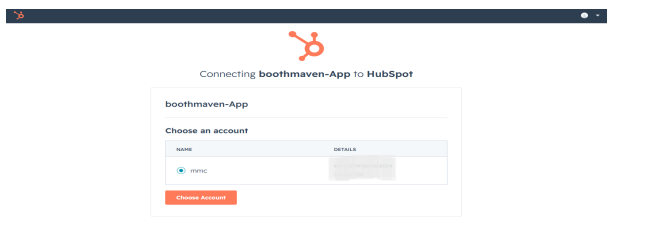
If you manage multiple HubSpot portals, all available accounts will appear here.
Verify the correct domain and portal ID before proceeding.
HubSpot OAuth → Select your account and click “Choose Account”
Step 3 — Review Permissions and Connect the App
HubSpot will display the permissions requested by boothmaven-App. Review the requested access carefully, then click
Connect app to continue.
Note:
You may see a warning message stating
“Connecting an unverified app.”
This is expected for applications that are not yet listed in the HubSpot Marketplace.
BoothMaven is a trusted application, so you can safely proceed by clicking
“Connect app”.
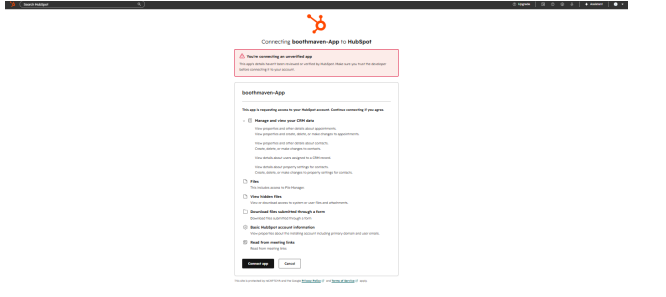
Review the requested permissions and click “Connect app”
After Connecting
Once the OAuth connection is completed successfully, the BoothMaven HubSpot & Salesforce settings page will display a connected status.
From this point onward:
- All leads captured in BoothMaven will automatically sync to HubSpot Contacts in real time
- Existing contacts will be updated instantly
- New contacts will be created automatically without manual intervention
Permissions Granted to BoothMaven
During the OAuth process, BoothMaven requests the following HubSpot permissions:
- Manage and view CRM data — read and write contacts, appointments, and property settings
- Files — access to the HubSpot File Manager
- View hidden files — access system files and attachments
- Download files submitted through forms — access uploaded form files
- Basic HubSpot account information — access primary domain and user email information
- Read meeting links — access HubSpot meeting link data