
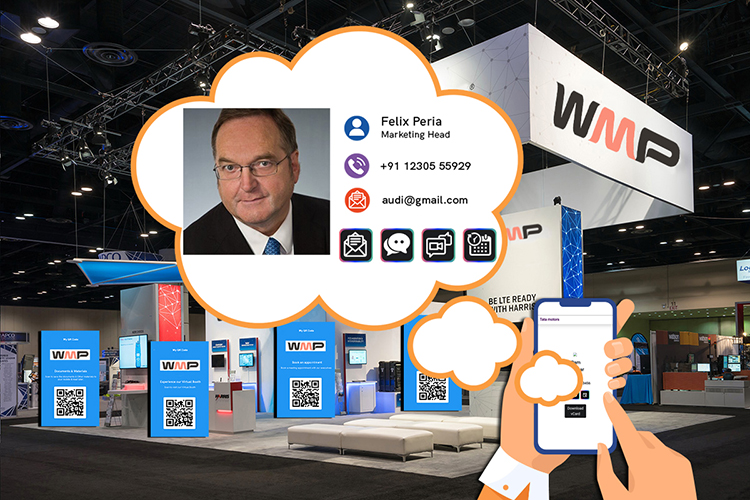
QR Stickers

QR code lead capture for trade show booths that turns every sticker into a measurable scan.

Design a QR sticker in the web panel, print it, and place it around the booth. A visitor scans it with their phone and your content opens instantly — no app to install. Every scan is tied to the event it was designed for, so you see which event, which sticker and which content was opened. Works the same at a trade show, a conference or an exhibition.

TL;DR: Four steps. Design the QR sticker in the BoothMaven web panel — frame, colours, logo, labels, live preview. Download it, choose the event, print it. Place it on the counter, backwall or product display. When a visitor scans, the content opens on their phone and the scan lands against that event. A generic QR generator stops at "somebody scanned it." BoothMaven ties the scan back to the event and the content it opened.

Design · Print · Scan · Measure Every scan tied to its event No app needed on the visitor's side
BoothMaven QR code lead capture designer — the web panel where an exhibitor picks a frame, sets the QR colour, uploads a logo, adds labels and previews the sticker before downloading it for print.
QR Code Designer · frame, colours, logo, labels, live preview
The four-step workflow

QR code lead capture in four steps: design, print and place, scan, measure.

Four steps, in the order an exhibitor actually moves through them. What does the sticker look like? Where does it go? What does the visitor see? What does the exhibitor learn?

Step 1 · Design

Design the QR sticker in the web panel — with your brand, your logo, your labels.

The QR Code Designer is a web panel where the sticker is built: pick a frame, set the corner square and dot type, apply the brand colours, upload the logo, add the labels that sit beside the code, and watch the live preview update as each change is made. It's the step that turns a plain black-and-white QR square into a sticker that looks like it belongs on your booth.

  • Frame library — start from a preset and adjust
  • Corner square type and dot type — Square, Rounded, and the variants in each dropdown
  • QR Code Color, QR Code Background and Corner Square Color
  • Logo upload — jpg, jpeg, png, gif, webp, svg, up to 1MB
  • Custom labels — short text fields beside the code on the printed sticker
  • Live preview — the sticker renders as it's edited, so what's designed is what prints
Step 2 · Print & place

Download the sticker, choose the event, print it, and put it where visitors already look.

When the design is ready, the panel downloads the sticker for print and asks which event it belongs to. That single choice is what makes the scan measurable later — the sticker carries the event context with it, so a scan at one show is attributed back to that show. The printed sticker then goes wherever visitors already look: counter panels facing the aisle, backwall pillars, product displays, or a sign above a meeting area.

  • Download for print, with the event selected at the moment of download
  • Event context travels with the sticker — a scan is attributed to the event it was printed for
  • Place on counter panels, backwall pillars, product displays and stand signage
  • Multiple stickers across the booth footprint catch visitors at different points
  • Same design works at trade shows, conferences and exhibitions — only the event changes
Step 3 · Scan

A visitor scans the sticker and the content opens on their phone.

A visitor opens the camera on their phone, points it at the sticker, and the content opens in their browser — no app to install, no QR reader to download, no rep required. The sticker's link opens whatever the exhibitor chose for that event, on the exhibitor's own URL and brand. That's what makes the sticker a real lead capture surface and not just booth decoration.

  • Scan with the phone's own camera — no app required on the visitor's side
  • The sticker opens the exhibitor's chosen content: microsite, digital card, document, video or product page
  • Opens in the browser, on the exhibitor's URL, carrying the exhibitor's brand
  • Works the same at a trade show, an exhibition, a conference or an expo
Step 4 · Measure

Every scan is tied to the event and the content it opened.

A generic QR generator stops at "the code was scanned." BoothMaven carries the event context with the sticker, so a scan becomes a named record — which event, which sticker on the booth, which content was opened, and when. That scan is also a buyer intent signal: a visitor who scanned the product overview and then the pricing sheet is a different lead from one who scanned a generic brochure and stopped.

  • Every scan tied to the event the sticker was printed for
  • Sticker-level attribution — which placement on the booth got the scan
  • Content-level attribution — which piece of content the visitor opened
  • Scans roll up alongside badge scans and card views in the same analytics
  • Scan data feeds the buyer intent signals the rest of the booth already produces
At a glance

The sticker, in four numbers.

1
QR Code Designer — frame, colours, logo, labels, live preview in one web panel
4
steps from design to measurement — design, print and place, scan, measure
0
apps for the visitor to install — the sticker opens in the phone's own browser
100%
of scans attributed to the event the sticker was printed for — not just a scan count
Reference

Where the QR sticker fits alongside the rest of the booth.

QR sticker placement — where it goes and what it does
Placement Where it goes What it does Best for
Counter panel On the front of the counter, facing the aisle — the surface a visitor reads while walking past. Catches a visitor at close range. The scan is quick and the sticker is small enough to sit neatly on the panel without dominating it. Every exhibitor. The default placement for a first sticker.
Backwall pillar On a vertical pillar at the edge of the booth, above eye level or at mid-height. Catches a visitor from further away — the sticker needs to be larger to scan from standing distance, and it reaches people who pass the booth without stopping at the counter. Corner booths and booths with visible pillars.
Product display On the surface beside or beneath a physical product, or on the surround of a demo screen. Ties the scan to a specific product. The visitor is already looking at the product; the sticker offers the specs, the video, or the deeper page for that one item. Exhibitors with a product range where the visitor wants detail on a specific item.
Stand signage On a sign above a meeting area, a demo zone or the entrance of the booth. Catches a visitor in transit. The sticker is scanned from further away and points to the exhibitor's general content — an overview, a microsite, a booking link. Booths with an organised meeting area or a demo schedule.
QR stickers · FAQs

QR code lead capture at events, answered.

The questions exhibitors ask most about QR stickers — placement, sizing, what a scan measures, and how it differs from a generic QR code generator.

QR stickers at events

Do QR codes work for lead capture at busy trade show booths?

Yes, when the code is placed where a visitor already stops and looks. QR stickers work best on counter panels, backwall pillars, product displays and stand signage — surfaces a visitor reads while waiting or browsing. The scan takes a second, opens the content on the visitor's own phone with no app to install, and the exhibitor sees the scan tied back to the event it was designed for.

How do QR code stickers work for lead capture?

An exhibitor designs a QR sticker in the BoothMaven web panel, chooses the event it belongs to, and downloads it for print. The printed sticker goes on a booth surface. A visitor scans it with their phone camera, the sticker's link opens the content instantly in their browser, and the scan is recorded against the event the sticker was designed for. Every scan shows which event, which sticker and which content was opened — not just that someone scanned a code.

What size should a QR code be for booth visibility?

The sticker needs to be large enough to scan from the distance a visitor is standing when they read it. A QR code on a counter panel is scanned from close range and can be small; a QR code on a backwall pillar or hanging sign is scanned from further away and needs to be larger. BoothMaven's designer lets the sticker be scaled at print time to match where it will be placed, and the live preview shows how it looks with the frame, logo and labels applied.

Where should you place QR codes at a booth?

Place a sticker wherever a visitor is already looking: counter panels facing the aisle, backwall pillars, product display stands, a demo screen surround, or a sign above a meeting area. Multiple stickers across the booth footprint catch visitors at different points — browsing, waiting, or sitting in a meeting. Each sticker carries the same event context, so scans across the booth roll up to one event record.

How is this different from a generic QR code generator?

A generic generator produces a QR code and tells you it was scanned. That is where it stops. BoothMaven's QR stickers carry the event they were designed for, so a scan is attributed back to that event and to the specific content that was opened. An exhibitor sees which event drove engagement, which sticker on the booth performed, and what the visitor actually looked at — not just a scan count with no context.

Does the QR sticker work for conferences and other event types, not just trade shows?

Yes. The same QR sticker used at a trade show works at a conference, an exhibition, an expo or an industry summit. The sticker is tied to the event it was designed for, not to the venue type or the show format. A conference booth, an exhibition stand and an expo counter all use the same designer, the same print output and the same scan attribution.

Ready when you are

Design. Print. Place. Measure. Every QR sticker tied to its event.

Design the sticker in the web panel with your brand, logo and labels. Print it. Place it around the booth. Every scan opens your content on the visitor's phone and lands against the event it was printed for — not just a scan count with no context.

Works at any trade show, conference or exhibition worldwide · iOS & Android · No app required on the visitor's side