

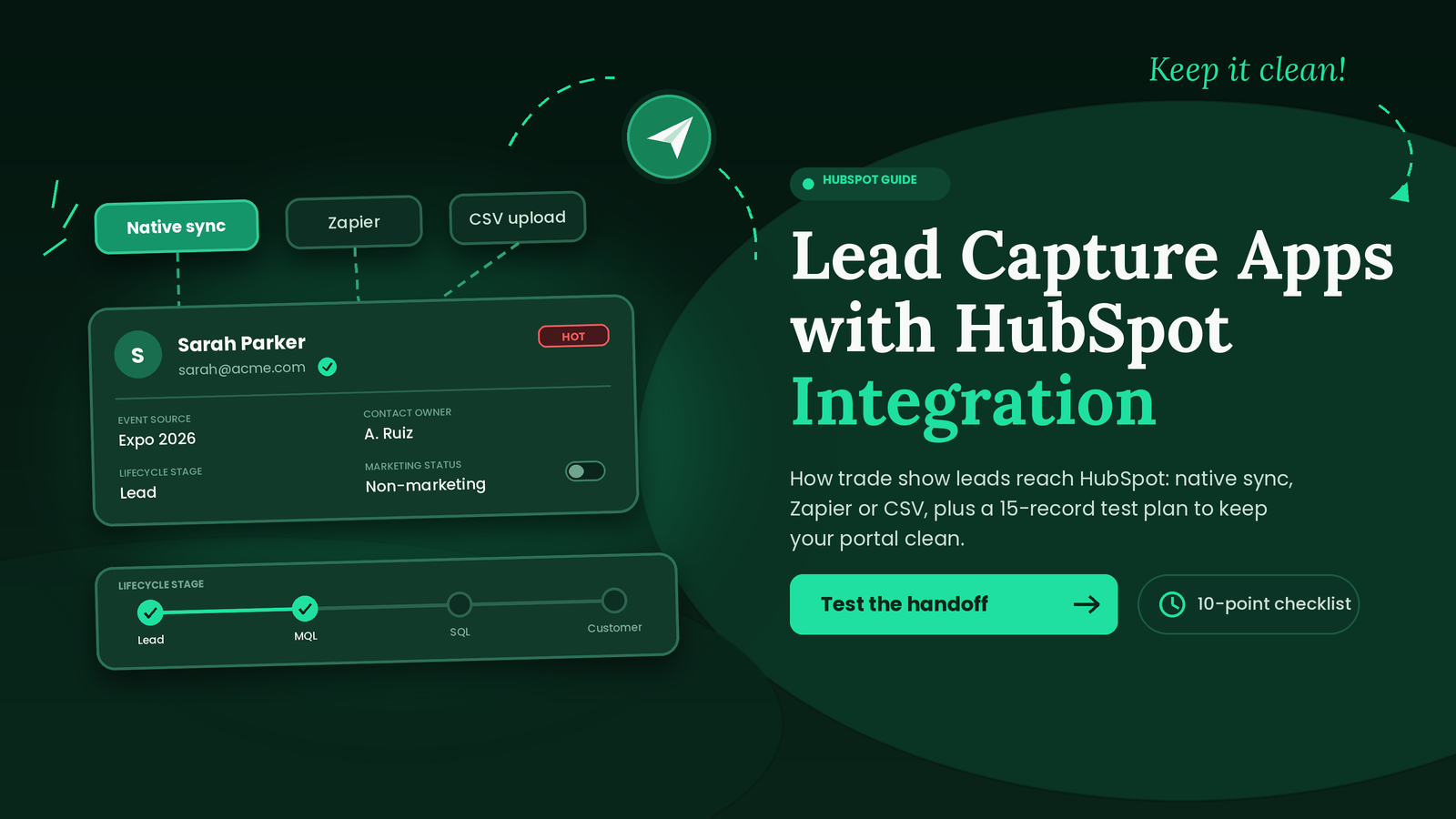
HubSpot makes event leads look easy, because email is the identifier and contacts are cheap to create. The trouble starts a week later: scans without an email address that quietly duplicate, event contacts flagged as marketing contacts that raise your bill, and a lifecycle stage that never moves. This guide shows how to choose a lead capture app with HubSpot integration that keeps your portal clean.
It is written for marketing operations managers, field marketers and event teams who run HubSpot lead capture events and want booth data in the portal by the end of the show day. We compare how ten tools move trade show leads to HubSpot, using each vendor’s own documentation and the public G2 reviews. We make BoothMaven, so we are biased, and we say where other tools are stronger. If you already use BoothMaven, the HubSpot integration page describes the connection.Why HubSpot sync problems look different from Salesforce ones
HubSpot’s data model is simpler, which hides the failure modes. HubSpot deduplicates contacts by email address and companies by company domain name. That works well for a tidy list and badly for a trade show, where a rep may scan someone with no email, or a personal address on a business card. HubSpot’s own documentation says that if an import lacks an email or another unique identifier, each row is created as a new contact, and companies without a domain name are treated the same way. In other words, the duplicates you find next month were created the day the scan arrived. The second difference is cost. HubSpot bills by marketing contacts, and contacts set as non-marketing cannot be emailed. If your lead capture app creates every scan as a marketing contact, your tier fills with people who never opted in. Decide the contact type before the show, not after the invoice. The third difference is attribution: original source properties are typically set when a record is created, so a lead that arrives with the wrong source tends to keep it. Our custom properties and source tracking workflow explains how to tag leads at the moment of capture. For Salesforce teams, we have a parallel guide to Salesforce lead capture for events. The ideas overlap, but the checks are different, and the CRM sync explainer covers what both share.Three ways trade show leads reach HubSpot
Every tool uses one of three routes, and many offer two. Which one you buy shapes cost, speed and maintenance.| Route | How it works | Strengths | Watch-outs |
|---|---|---|---|
| Native integration | The app connects to HubSpot with OAuth and creates or updates contacts through the API as leads are captured | Fast; usually included in a plan; no extra tool | Field mapping may be fixed; company association and custom objects vary |
| Zapier or webhook | The app sends an event to Zapier or a webhook, which creates or updates HubSpot records | Flexible; reaches custom properties and other systems | Another subscription; a failed Zap can drop a record. |
| CSV import | A marketer exports a file and imports it through HubSpot’s import tool | No integration needed | Manual; delay of days; duplicates unless the file has email and domain; no timeline for meetings or notes |
A 10-point checklist for trade show leads to HubSpot
“Native HubSpot integration” can mean anything from a full contact sync to a CSV with a logo. Ask these ten questions in every demo, and get the answers in writing.- Which records does it create? Contacts only, or companies, deals and associations too? See company-level rollup.
- What is the unique identifier? Email is standard. Ask what happens to a scan with no email.
- Which properties map, and can you add custom ones? Event name, booth, lead source and score are the usual four.
- What lifecycle stage and lead status does it set? Ideally the tool feeds properties and your HubSpot workflows do the staging. See lifecycle stage data.
- Who becomes the owner? Check whether the tool sets it, or leaves it to your assignment workflows.
- Does it add contacts to a list per event? Event lists make follow-up and reporting simple.
- What happens to notes, tasks and meetings? They should reach the contact timeline.
- Marketing or non-marketing contact? Confirm you can control the status, and what it does to your billing tier.
- How are errors reported? Look for a log, retries and an alert, so a rejected record is not a mystery.
- What happens offline? Records should queue and sync on reconnect, in order.
HubSpot objects explained for event teams
A lead capture app with HubSpot integration can touch four things, and event teams often mix them up. Contacts are people, and email is their unique identifier. Companies are accounts, identified by domain name. Deals are opportunities. Associations link them, so a contact scanned at a booth should attach to the right company and, later, to a deal. What should the booth create? Almost always a contact, with the company association created through the domain. Deals belong after qualification, usually made by a rep or a workflow, not by the scan. Notes, tasks and meetings should attach to the contact timeline. This split keeps your pipeline clean: the booth feeds top-of-funnel records, and humans or workflows decide what becomes a deal. See company-level rollup for how several scans from one account should combine, and deal attribution for tying revenue back to the show.Lead capture apps with HubSpot integration compared
The table lists what each vendor documents about HubSpot. Vendor statements are their own claims, and reviewer comments are labelled as such. Where a capability is not documented, we say so.| Tool | HubSpot route | What the vendor documents | Watch-out |
|---|---|---|---|
| BoothMaven | Native on Essential and Business; Zapier and webhooks for other systems | Full contact sync at no extra cost; offline capture on every plan | Not on the Capture tier; standard field mapping |
| Mobly | Native, certified app | HubSpot-certified app; native sync to eight systems | Reviewer reported some leads not reaching the CRM when enrichment failed |
| Popl | Native, certified app | HubSpot Certified App, per Popl | G2 reviewers cite customisation limits |
| iCapture | Native with custom mapping | Sync confirmation logs, HubSpot and Calendly booking from a lead | Mapping and form changes often go through support, per reviewers |
| Blinq | Native | HubSpot among seven native CRMs, with campaign tracking per event | Per-lead event pricing |
| B2Brain | Native | Native HubSpot and Salesforce, dedupe on write | Only two native CRMs |
| Captello | Native | HubSpot named among supported CRMs | Enterprise scope; pricing not public |
| momencio | Native | HubSpot supported natively, per momencio | Per-seat tiers and annual term |
| Lodago | Native | HubSpot among supported CRMs, per Lodago | Pricing by quote |
| Zuant | Real-time CRM sync described | Real-time sync and CSV export | Check HubSpot support; manual device sync reported |
Tool by tool: how each handles trade show leads to HubSpot
Included sync
BoothMaven: included sync, standard mapping
BoothMaven includes HubSpot contact sync on Essential and Business at no extra cost, and keeps offline capture on every plan. The entry Capture tier does not include CRM sync. Zapier and webhooks cover systems without a native connector. The limits are standard field mapping, not custom object coverage, and no native Marketo, Eloqua or Pardot. Start with the HubSpot integration page, and ask for current property and association coverage in a trial.- Best for
- Teams that want included native HubSpot sync on a published price, with offline capture on every plan.
- Watch-outs
- Not on the Capture tier; standard field mapping; no native Marketo, Eloqua or Pardot.
- Pricing model
- Published month-to-month tiers; HubSpot sync included on Essential and Business.
Certified apps
Mobly and Popl: certified apps
Mobly describes a HubSpot-certified app, enriches every lead through a waterfall across 20+ providers and fires follow-up email and SMS from the booth. It leads on enrichment depth, which helps HubSpot properties arrive filled. One G2 reviewer reports that not every lead reached the CRM when enrichment failed. Popl describes a HubSpot Certified App and an Ask Popl connector, but G2 reviewers cite cost and limited customisation. See BoothMaven vs Mobly and BoothMaven vs Popl.- Best for
- Teams that want a certified HubSpot app with enrichment depth (Mobly) or a card-first certified app (Popl).
- Watch-outs
- Mobly: reviewer reported leads not reaching the CRM when enrichment failed. Popl: cost and customisation limits reported.
- Pricing model
- Mobly: not published, demo-led. Popl: team pricing by custom quote, free individual plan.
Configuration and logs
iCapture: configuration and logs
Cvent’s iCapture combines custom mapping with sync confirmation logs and lets booth staff launch a follow-up booking through Calendly or HubSpot. G2 reviewers value the support team, but say mapping changes often need it, and one mentions sync cutting out on hotel Wi-Fi. See BoothMaven vs iCapture.- Best for
- CRM admins and complex portals that need custom mapping, skip logic and sync confirmation logs.
- Watch-outs
- Mapping and form changes often go through support; sync cut-outs reported on weak Wi-Fi; pricing not published.
- Pricing model
- Not published on its website in the materials we reviewed.
Other routes
Blinq, B2Brain, Captello, momencio, Lodago and Zuant
Blinq syncs to HubSpot among seven CRMs, with campaign tracking per event, but charges per lead at events. B2Brain writes natively to HubSpot and Salesforce and dedupes on write, though only those two CRMs are native. Captello and Lodago name HubSpot among supported systems. momencio supports HubSpot natively, per its own pages, on a per-seat model. Zuant describes real-time sync, so ask which CRMs it covers. Compare them on the alternatives hub.- Best for
- Teams whose primary need is cards, enterprise activations, meeting-first flows or a specific CRM route.
- Watch-outs
- Per-lead event pricing, enterprise scope, per-seat tiers or unconfirmed HubSpot support.
- Pricing model
- Mixed: custom quotes, per-lead event pricing or per-seat annual tiers.
What happens when the booth is offline?
Venue networks fail, and the offline question is really a HubSpot question: what happens to the record when the device reconnects? Ask three things. Does the app keep every capture, including notes and photos? Does it sync in order, so the email match still prevents duplicates? And does it show which records failed? Our offline capture FAQ and offline guide explain the mechanics. Vendors differ. BoothMaven works offline on every plan and syncs when the device reconnects. B2Brain’s device holds up to 150 captures. Zuant reviewers describe manual syncing that reps forget, and an iCapture reviewer reports sync cutting out on show-floor Wi-Fi. None of these rules a tool out, but each is a reason to test with airplane mode on.Which route fits your HubSpot portal?
Choose by portal maturity. A newer portal on a lower tier, with a few properties and no complex workflows, suits a tool with included native sync and standard mapping. A growing portal with custom properties, lists and workflows needs configurable mapping or a Zapier layer for exceptions. An advanced portal with multiple business units and heavy automation needs deep mapping, logs and a named contact at the vendor. Your tier matters too. Features such as workflows and manual duplicate management depend on your HubSpot subscription, and practitioners note that manual duplicate management is a Professional and Enterprise feature. If you are on a lower tier, rely more on clean capture, because you cannot fix duplicates later. Teams with straightforward portals should shortlist BoothMaven, Popl or Blinq. Teams who want enrichment before sync should add Mobly, and teams who need configuration should look at iCapture. For a full comparison beyond HubSpot, read the best lead capture apps guide.Set up HubSpot before the show
Even the best lead capture app with HubSpot integration struggles in a portal that is not ready. This setup takes an afternoon and suits most teams running HubSpot lead capture events across a season. Good HubSpot lead capture events start in the portal, not at the booth.- Create properties for the event. Add event name, booth or session, lead score and capture method, so reports and workflows can use them.
- Decide the source. Agree the value that marks a trade show lead, and where the show name sits.
- Decide contact type. Set a rule for marketing versus non-marketing status, and check what it does to your tier.
- Build one list per event. An active list that filters on the event property updates itself. See event-specific lists.
- Plan the workflows. Assign an owner, set a follow-up task and move qualified leads through lifecycle stages.
- Check association settings. Confirm contacts attach to the right company by domain, so account teams see a single view.
Marketing contacts, consent and cost
HubSpot’s model makes consent a cost question as well as a legal one. Contacts set as marketing contacts count toward your tier, and non-marketing contacts cannot be emailed. A badge scan is not consent to be marketed to, so a safe default is to create event leads as non-marketing until a lawful basis exists, then upgrade qualified contacts. Read the explainer on scanning badges, consent and privacy before you decide, and check your own policies. Ask each vendor three questions. Can I set the marketing status at sync time? Does the app store a consent flag and send it to HubSpot? Where does the vendor store the data? BoothMaven stores platform data in EU data centres and syncs to your portal. Verified addresses help too: an email verifier reduces bounces that damage your sending reputation.A 15-record test plan for HubSpot
Run this in a test list before any show. It takes under an hour and finds nearly every problem a lead capture app with HubSpot integration can have, whether you run one show a year or one a week.- Capture five clean leads with every field, and check owner, source, event property and list membership.
- Capture two people who already exist in HubSpot, and see whether the app updates or duplicates them.
- Capture a lead with no email, and see whether it is created, rejected or flagged.
- Capture three people from one company, and check the company association.
- Capture a lead with a typed note and a voice note, and see where each lands on the timeline.
- Book a meeting from a lead, and see whether it reaches the timeline. See meeting timeline sync.
- Capture three leads in airplane mode, reconnect, and check order, duplicates and errors.
- Break a rule on purpose, such as a blank required property, and confirm the app tells you.
What happens after the sync: follow-up in HubSpot
Sync is the start. The value comes from what HubSpot does next. With properties and lists in place, workflows can assign an owner, create a task and enrol the contact in a sequence the same day. A realistic pattern is that the capture tool feeds the properties and HubSpot Workflows does the staging, so the lifecycle logic lives where your team already maintains it. Speed matters here. Our research on how soon to follow up and why show leads go cold argues for same-day contact for hot leads, which is only possible when records, owners and tasks arrive without manual steps. For routing and prioritisation, see prioritising leads after an event and the automated follow-up guide. If you want AI assistants to help with drafting, the MCP Server and lead-to-follow-up chain show how.Reporting on event leads in HubSpot
With the event property, source and lists in place, HubSpot reporting answers the questions finance asks: how many leads each show produced, how many became deals and how fast the first follow-up happened. Build one dashboard per programme, filter on the event property, and compare shows side by side. This is where the setup pays back for HubSpot lead capture events. Two practical points. First, revenue attribution needs the contact associated with the deal, so ask each vendor whether the sync helps or leaves it to you; our deal attribution workflow explains the pattern. Second, keep a booth-level view as well as the CRM view. An event dashboard shows activity, meetings and engagement that HubSpot reports do not hold, and together they tell the event ROI story set out in the ROI guide. If engagement matters to your reps, check that buyer intent signals and content microsite engagement reach the contact record.What marketing ops, sales ops and field marketing each need
- Marketing operations owns properties, lists and workflows. Ask for property control and an error log.
- Sales operations and RevOps own routing and reporting. Ask for owner rules and deal attribution.
- Field marketing owns volume and booth speed. Ask for offline behaviour and one dashboard across shows. See the field marketing manager page and the event dashboard.
Common failures and how to fix them
- Duplicate contacts. Scans without an email create separate records. Capture an email where you can, and use email verification to catch typos.
- Wrong source. Original source is typically set at creation, so fix the mapping before the show, not after.
- Marketing contacts spike. Set non-marketing as the default for event leads, then upgrade qualified contacts.
- No company association. Check that the app sends a domain, or enable company association in your import settings.
- Lifecycle stage stuck at Lead. Let HubSpot workflows move contacts, based on the properties the app sets.
FAQs
It depends on your portal and budget. For included sync on a published price, BoothMaven. For certified apps and enrichment, Mobly or Popl. For configuration and logs, iCapture. Shortlist two or three and test them with the 15-record plan above.
Yes, if the tool has a native integration. Most tools in this guide do, including BoothMaven, Mobly, Popl, iCapture, Blinq, B2Brain, Captello, momencio and Lodago. Zapier remains useful for custom properties or other systems. See Zapier-to-HubSpot workflows.
HubSpot deduplicates contacts by email address and companies by domain, so capture both wherever possible. Records without an email or domain are created as new records. Test with people who already exist.
Often not at first. Marketing contacts count toward your tier, and a badge scan is not consent to be marketed to. Many teams create event leads as non-marketing, then upgrade qualified contacts once a lawful basis exists.
Test BoothMaven against your HubSpot portal. Book a 20-minute demo. We will run the 15-record test with your properties and tell you plainly where another tool on this list fits better.
Book a demo →