

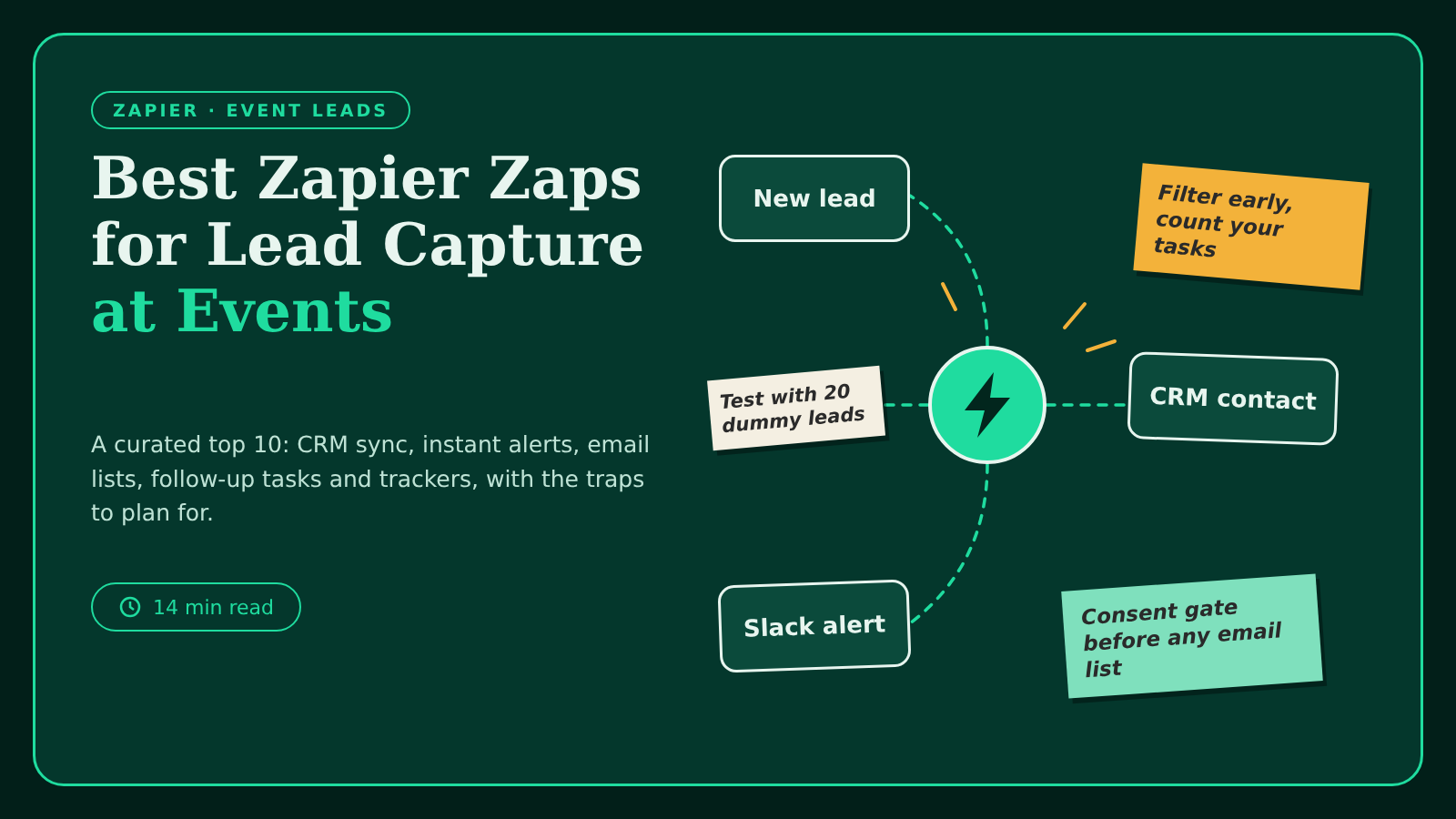
Zapier is the glue between your lead capture app and everything else: the CRM, the team chat, the email platform, the task board. Used well, a handful of Zaps turns a captured lead into an alert, a record, a task and a list entry within a minute. Used badly, it drops leads, duplicates contacts and burns through a task allowance in a day, which is why Zapier lead capture events planning matters. This guide curates ten Zapier zaps for lead capture at events, shows where each fits, and covers the limits and traps to plan for.
It is written for marketing operations managers, field marketers and event marketers who want booth data moving without a developer. This page is an index, not a duplicate. Each Zap below links to a step-by-step workflow page, so you can see how Zapier lead capture events setups look in practice, and this guide explains which to build first and how to keep them reliable. It uses BoothMaven as the source, because that is where our workflow pages are written, and the patterns apply to any capture app with a Zapier connector. We make BoothMaven, so we are not neutral. See the Zapier integration page for the connector.How Zapier lead capture events workflows work
Zapier lead capture events setups share one structure: a Zap has a trigger and one or more actions. The trigger is an event in one app, such as a new lead in your capture app. The actions are what happens in other apps, such as creating a contact in your CRM. BoothMaven’s Zapier connector exposes triggers for a new contact, a new meeting and a new note, and, in the other direction, actions that create a contact from another tool, according to our workflow plans. Check the current trigger list inside Zapier, because connectors change. Three Zapier details shape how you design event Zaps. Third-party summaries of Zapier’s plans, which change, report that a task is one successful action step, and that filters, paths and formatter steps do not count as tasks. They also report that the free plan limits Zaps to two steps and a monthly task allowance, and that multi-step Zaps, premium apps such as Salesforce and HubSpot and webhooks need a paid plan. Check Zapier’s own plan page before you design, and note that BoothMaven’s Zapier and webhook access is part of the Essential and Business tiers. The practical effect for Zapier trade show leads is arithmetic. Estimate the tasks for a show with this formula: leads times action steps per Zap, summed across Zaps. A show with 400 leads and a three-action Zap uses about 1,200 tasks, and a second Zap adds more. Plan the allowance before the show, not on the first morning.When to use Zapier and when to use native sync
For Zapier lead capture events work, native sync is better for the core record, and Zapier is better for everything else. A native HubSpot or Salesforce connection usually handles contact creation with fewer moving parts, as the Salesforce integration page describes. Zapier shines where no native connection exists, or where you want actions the native sync does not offer, such as a chat alert, a task in a project tool or a row in a spreadsheet.| Job | Native sync | Zapier |
|---|---|---|
| Create the CRM contact | Preferred where available. See Salesforce and HubSpot | Good fallback for other CRMs, such as Pipedrive or Zoho |
| Alert the team | Rare | Ideal. Chat alerts take minutes to set up |
| Add to an email list | Sometimes | Common route, with a consent filter |
| Create tasks | Sometimes | Flexible across task tools |
| Log to a spreadsheet | Rare | Quick and cheap |
| Bring inbound data in | Rare | Useful for registration forms and calendars |
The ten Zapier zaps for event lead capture at a glance
| # | Zap | Trigger to action | Why it matters | Workflow page |
|---|---|---|---|---|
| 1 | Create a CRM contact | New contact to HubSpot contact | The record sales works from | HubSpot contact |
| 2 | Create a Salesforce record | New contact to Salesforce contact or lead | The same, for Salesforce teams | Salesforce contact |
| 3 | Alert sales instantly | New contact to Slack message | Hot leads get action in minutes | Slack lead alert |
| 4 | Alert on a booked meeting | New meeting to Slack message | The team knows who is coming | Slack meeting alert |
| 5 | Add to an email list | New contact to Mailchimp subscriber | Starts the nurture, with consent | Mailchimp list |
| 6 | Tag and automate | New contact to ActiveCampaign contact with tag | Segments leads by event and source | ActiveCampaign tag |
| 7 | Follow-up task after a meeting | New meeting to Salesforce task | Prevents the forgotten follow-up | Salesforce task |
| 8 | Task for a qualified lead | New contact to Asana task or Trello card | Gives the owner a deadline | Asana task |
| 9 | Log to a sheet | New contact to Google Sheets row | A cheap backup and a no-CRM option | Google Sheets row |
| 10 | Bring registrations in | Typeform submission to a BoothMaven contact | Pre-show signups become leads | Typeform contact |
Records: Zaps 1 and 2, create the CRM contact
Record
Create the CRM contact in HubSpot or Salesforce
The first of the Zapier zaps for lead capture that an event team builds creates the contact in the CRM. For HubSpot, the Zap maps the new contact’s name, email, company and notes to a contact record, and sets the source and event properties. For Salesforce, it creates a contact or lead, with the owner and lead source your org expects. See the workflow pages for HubSpot and Salesforce, and the Pipedrive and Zoho CRM variants in the Zapier workflows index.- Best for
- Teams that want a CRM record created automatically for every captured lead.
- Watch-outs
- Match before you create; set a consistent source; respect required fields; filter out unverified emails.
- Pricing model
- Included on BoothMaven’s Essential and Business tiers; Zapier plan costs depend on tasks and premium apps.
- Match before you create. Use a find-or-create step so a second scan of the same person updates the record rather than duplicating it. See Salesforce duplicate detection and HubSpot company-level rollup.
- Set the source. Send a consistent value, such as the show name, so reports work.
- Respect required fields. If your CRM requires a field the capture app does not send, the Zap will fail. Set a default or relax the rule for the integration.
- Do not push unverified emails. A filter on verification status keeps bounces out of the CRM.
Alerts: Zaps 3 and 4, tell the team in minutes
Alert
Alert sales instantly in Slack or Teams
An alert is the cheapest automation with the biggest effect for Zapier trade show leads. When a hot lead is captured, a message in the sales channel with the lead’s name, company, score and note lets a rep reach out the same hour, which matters because speed drives response. See how soon to follow up and why leads go cold.- Best for
- Teams that want hot leads acted on the same hour by the right rep.
- Watch-outs
- Alert on the right leads, with a score filter; include context; pick one channel owner.
- Pricing model
- Zapier plan costs; Slack or Teams depend on your existing subscription.
- Alert on the right leads. Add a filter on score or a tag, so the channel does not drown in every scan.
- Include context. Name, company, the note and a link to the record. An alert with no context creates a question, not an action.
- Alert on meetings too, so the booth team knows who is arriving and what they asked.
- Pick one channel owner, so alerts are acted on.
Nurture: Zaps 5 and 6, email lists and tags, with a consent gate
Nurture
Add to an email list and tag, with a consent gate
Sending Zapier trade show leads to an email platform is the most common event Zap and the riskiest. A scan or a card is not necessarily consent to marketing, and email platforms have their own policies. Build a consent gate. Add a filter that lets only leads with a recorded opt-in reach the list, and send the rest to a personal follow-up instead. Our guide to apps to collect email addresses at events explains the consent gap, and our consent explainer covers badge scans.- Best for
- Teams that want event leads in their email platform with proof of consent.
- Watch-outs
- A scan or card is not necessarily marketing consent; email platforms may require proof; verify emails first.
- Pricing model
- Included on BoothMaven’s Essential and Business tiers; Zapier and email platform plan costs apply.
- Filter on consent before the action runs.
- Add a source tag with the show and the date, so you can segment and prove where the address came from.
- Verify the email first, to protect your sending reputation.
- Start a short sequence, not a newsletter blast.
Follow-up: Zaps 7 and 8, tasks that stop leads going cold
Follow-up
Create tasks for meetings and qualified leads
Leads go cold when nobody owns the next step. A Zap that turns a booked meeting or a qualified lead into a task with an owner and a due date closes that gap. For Salesforce teams, a new meeting can create a task for the owner. For project tools, a qualified lead can become an Asana task or a Trello card on a follow-up board.- Best for
- Teams that want an owner and a due date on every qualified lead or booked meeting.
- Watch-outs
- Only create tasks for qualified leads, or the board fills with noise; set the due date by rule.
- Pricing model
- Zapier plan costs; task tools depend on your existing subscriptions.
- Create tasks only for qualified leads, or the board fills with noise.
- Set a due date by rule, such as one business day for hot leads.
- Assign by territory or round robin, using fields your capture app sends.
- Include the note, so the owner starts with context.
Trackers: Zap 9, a sheet as backup and as a no-CRM option
Tracker
Log every lead to a spreadsheet
A spreadsheet row for every lead is an old trick that still earns its place. It is a backup if another Zap fails, a shared view for people without CRM access and a simple CRM for a small team. A second sheet can log meetings and notes as an activity tracker.- Best for
- Small teams without a CRM, or as a backup for teams that have one.
- Watch-outs
- Add every field including source and consent; lock the header row; treat as a copy, not the system of record.
- Pricing model
- Zapier plan costs; Google Sheets is free with your account.
- Add every field, including source, consent and the time, so the sheet is useful later.
- Lock the header row, and do not rename columns once a Zap writes to them.
- Treat it as a copy, not the system of record, once you have a CRM.
Inbound: Zap 10, bring registrations and bookings in
Inbound
Inbound Zaps need extra care with consent and duplicates. A registration form should carry its own consent wording, and the Zap should check whether the person already exists.
Bring registrations and bookings into your capture tool
Zapier also works in the other direction. A pre-show registration form can create a contact in your capture app, so invitees are known before they reach the booth, and a booking in a calendar tool can create a meeting. These suit teams that run pre-show outreach and want the data in one place. See the pre-show outreach cadence and the best meeting planner apps.- Best for
- Teams that want registration forms and calendar bookings to become leads in the same system.
- Watch-outs
- Carry consent wording in the form; check for duplicates before creating.
- Pricing model
- Zapier plan costs; form and calendar tools depend on your existing subscriptions.
A worked example: one lead through four Zaps in two minutes
A concrete run shows how the Zaps combine. Take a visitor named Priya, who talks to a rep, shares her email and agrees to a demo.- The rep captures her with a note, two qualifiers and a booked meeting. The lead syncs when the phone has a signal.
- Zap 1 fires. A find-or-create step checks the CRM for Priya’s email. She is new, so a contact is created with the show as the source.
- Zap 3 fires. A filter checks the score. It is above the threshold, so a Slack message posts her name, company, note and a link to the record.
- Zap 7 fires when the meeting is booked, creating a task for the account owner with a due date of the next business day.
- Zap 5 checks consent. Priya ticked the opt-in box, so she is added to the list with a source tag. A lead without a tick would have skipped this step.
- Zap 9 appends a row to the sheet, as a backup, with every field.
Zapier traps at a trade show, and how to avoid them
- Duplicates. Use find-or-create steps, and test with a person scanned twice.
- Missing required fields. Map defaults, and watch the error log on day one.
- Polling delay. Some triggers check every few minutes rather than instantly, so a lead may arrive a few minutes late. Do not rely on an alert for second-by-second action.
- Task burn. A noisy trigger plus several actions can exhaust an allowance mid-show. Filter early, and watch usage.
- Silent failures. A failed Zap may not alert you. Turn on error notifications, and review the history after each show day.
- One person’s Zaps. If the builder leaves, the Zaps may stop. Use a shared account and a naming convention.
- Data in transit. Zapier passes personal data between apps. Treat it as a processor in your records, and check your privacy notices.
The fields to send in every Zap
Zaps are only as useful as the data they carry. Agree a standard payload before you build, so every Zap and every destination speaks the same language. These ten fields cover most event needs.- Name and email, the basics. Verify the email before you send it on.
- Company and title, from capture or enrichment. See contact enrichment.
- Show name and date, so reports and segments work.
- Source and capture method, such as badge, card, QR or form.
- Owner or rep, so alerts and tasks reach the right person.
- Score and qualifier answers, so filters can decide.
- Note, the voice or text note with the conversation.
- Meeting details, when a meeting is booked.
- Consent flag and wording, with the time.
- A record link, so a click leads back to the lead.
A build order for a small team
- Week one: create the CRM contact (Zap 1 or 2) and test it with 20 dummy leads.
- Week two: add the Slack or Teams alert (Zap 3), filtered to qualified leads.
- Week three: add the follow-up task (Zap 7 or 8) for booked meetings.
- Week four: add the email list Zap (Zap 5 or 6) with a consent gate, and the sheet backup (Zap 9).
- Before the show: run a full rehearsal, including an offline capture, and check usage.
A test plan for your event Zaps
- Send 20 dummy leads, including a duplicate, a lead with no email, a lead with a long note and a lead with an unusual character in the name.
- Check each destination: the CRM record, the alert, the list entry, the task and the sheet row.
- Check the fields: source, owner, consent, show name and timestamps.
- Break something on purpose, such as a required field, and confirm you are notified.
- Go offline, capture five leads, reconnect and check the Zaps fire once each.
- Check usage to see the tasks consumed, and extrapolate to the show.
Common mistakes with Zapier for event lead capture
- Sending everyone to the email list. Gate by consent.
- Building ten Zaps before testing one. Start small.
- Ignoring duplicates. Match before you create.
- Forgetting the offline case. Leads arrive late, so plan for delay.
- Not owning the Zaps. Use shared accounts and clear names.
FAQs
Start with three: create the CRM contact, alert the team in Slack or Teams and create a follow-up task for booked meetings. Then add an email list Zap with a consent gate and a sheet backup. See the Zapier workflows index and the Zapier integration.
Yes. A Zap can create or update a contact in either, with the source and owner. If your capture app has a native connection, use it for the contact and keep Zapier for alerts, tasks and lists. Check Zapier’s plan, because premium apps may need a paid plan. See HubSpot lead capture and Salesforce lead capture.
Estimate leads times action steps per Zap, summed across Zaps. A show with 400 leads and a three-action Zap uses about 1,200 tasks. Filters and similar built-in steps generally do not count, so filter early. Check Zapier’s current rules.
No. A scan or card is not necessarily consent to marketing, and email platforms may require proof. Add a consent filter, send the rest a personal follow-up and record the source. See apps to collect email addresses at events and our consent explainer.
Connect your booth to your tools in an afternoon. Book a 20-minute demo. We will build three Zaps with you and run the 20-lead test, and say plainly when native sync is the better route.
Book a demo →